Docs · Shop floor
Work Orders
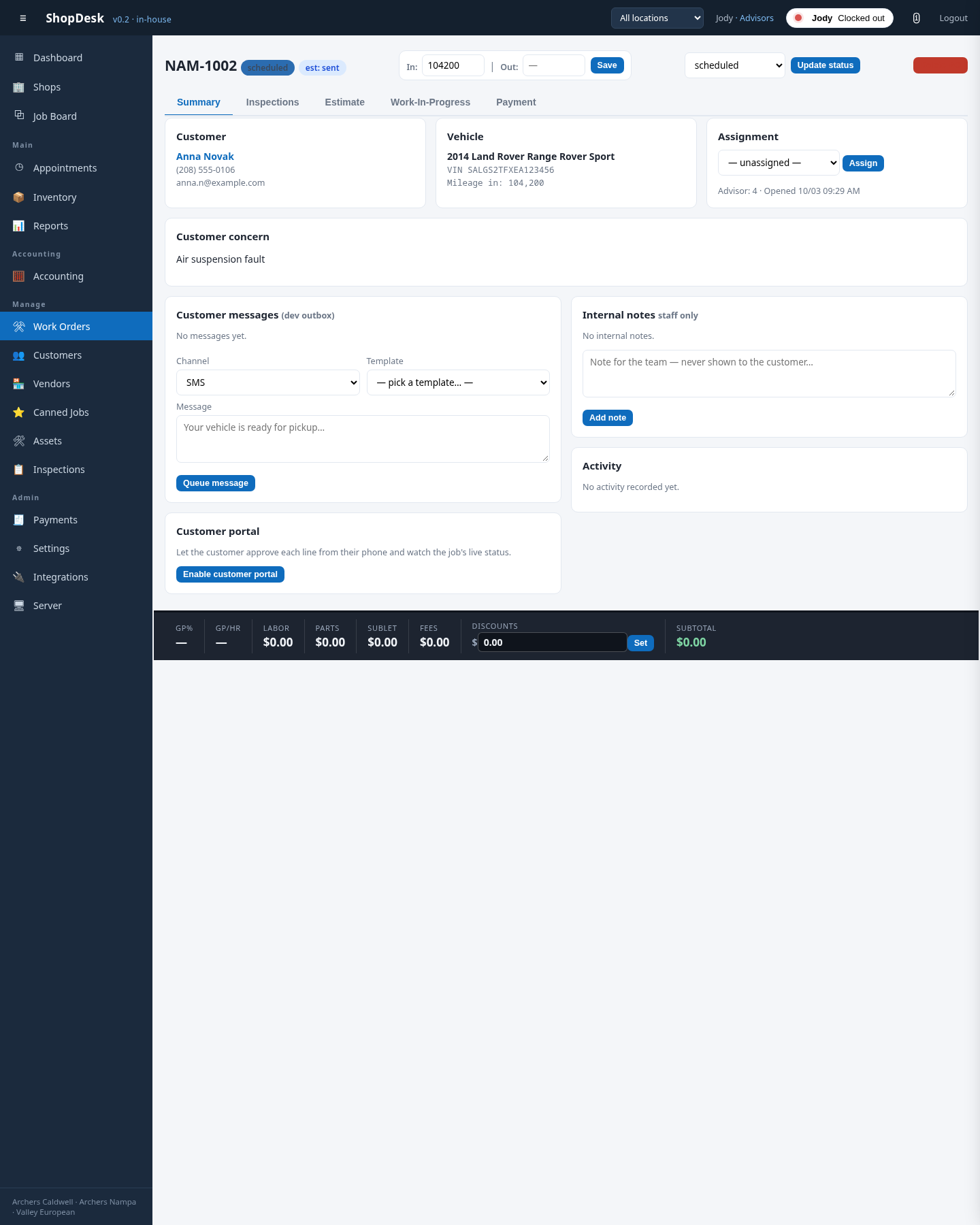
Opening a repair order gives you five tabs:
- Summary — guest, vehicle, concern, assignments, notes and activity.
- Inspections — digital vehicle inspections attached to this RO.
- Estimate — job lines, parts, fees and discounts; send it to the guest for approval.
- Work-In-Progress — the technician’s view: start/stop job clocks, mark labor complete.
- Payment — build the invoice and take payment.
The odometer In/Out boxes at the top of the RO are editable — tap, type, save.
Creating a repair order
Open Work Orders and start a new repair order. Pick the guest and vehicle (or add them on the spot), enter the guest’s concern and the odometer reading, then save. The RO shows up on the Job Board, ready to check in.
Sending an estimate for approval
On the RO’s Estimate tab, build the job lines, parts, fees and discounts, then send it to the guest for approval — ShopDesk can text or email it. Approved lines move forward to Work-In-Progress; declined work is tracked for follow-up in the Declined Work report.